|
|
|
|
|
|
|
|
| Rock Bottom Prices |
Because it's crazy to pay more for your
cartridges than you paid for your printer. |
|
|
|
| Free Same Day Shipping |
FREE shipping for US orders > $45. Orders received
M-F by 4 PM EST ship that same day. Overnight and Two-Day shipping is also available (Read More) |
|
|
|
| "No-Hassle" Returns |
| Our products (except special order products) are 100% guaranteed to be free from defects for one full year. (Read More) |
|
|
|
 |
Safe & Secure Ordering |
|
| Order SECURELY on our award winning website or call us: 269-649-5492. Credit Cards, Paypal, Purchase Orders, Checks & Money Orders Accepted (Read More) |
|
|
|
|
|
|
Refills: Lower your ink and toner cost
There are two basic types of printers: 1) Ink Jet Printers and 2) Laser Printers. Inkjet printers
use ink cartridges to precisely 'spray' liquid ink on the page, and Laser Printers use toner
cartridges to 'fuse' toner powder to the page using heat. All printers use a black cartridge which
is full of either black ink or black toner, and color printers also have color cartridges which use
the three primary colors (cyan, magenta and yellow) to form all the colors of the rainbow.
These colors are produced by the precise blending of the three primary colors on the printer
page. In addition, some printers now have additional ink colors (usually called photo colors)
which are used to make photographs more realistic. Some Ink Cartridges have all three
primary colors in one color cartridge (the cartridge is divided into separate chambers so the
colors don't mix before they are sprayed on the page), but most new ink jet printers, and all
color laser printers have separate cartridges for each color.
Ink Refills or Replacement Printer Ink Cartridges - Which is the best choice for you?
When your printer runs out of ink or toner you have to refill the ink or toner. The printer
manufacturers want you to purchase their replacement cartridges or ink refills because they are
inexpensive to make, and expensive to buy. There are other alternatives, however. We have
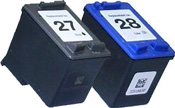
refilled and compatible cartridges available for all printers. These cartridges sell anywhere from a 10% discount
to a 75% discount over the Manufacturer's cartridges, and are our biggest seller. They are used exactly
like new printer ink cartridges -take them out of the box, load them in your printer, and print
away! Find the right cartridge by selecting your printer's
manufacturer or by using the search box above.
Ink Refill Kits and Toner Refill Kits
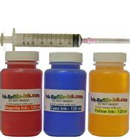
The least expensive alternative, however, to use your printer is to refill the cartridges yourself,
which involves injecting ink into your cartridge using a syringe, or simply pouring laser toner
into a toner (laser) cartridge. Read our overview of the printer ink refill
process, or an overview of the laser toner refill process.
Most cartridges can be refilled multiple times, and the savings
are serious. Our refill kits were our original product, and we're the Ink Refill and Toner Refill
Experts. Different printers use different inks & toner, and if you want the refill to work you
have to purchase the right ink or toner and use the right refill tools. Our product is NOT a one-
size-fits-all product. Our ink refills and toner refills are manufactured specifically for each individual
printer, and are guaranteed to work in your printer. Find the right printer refill kit by selecting
your printer's manufacturer above or by using the search box above.
|